Your first AI page, with nothing in the way
Create with AI now starts with two short steps and one scene, shows the exact cost before you press Generate, asks what went wrong only if you want to say, and keeps your scenes safe while you top up.
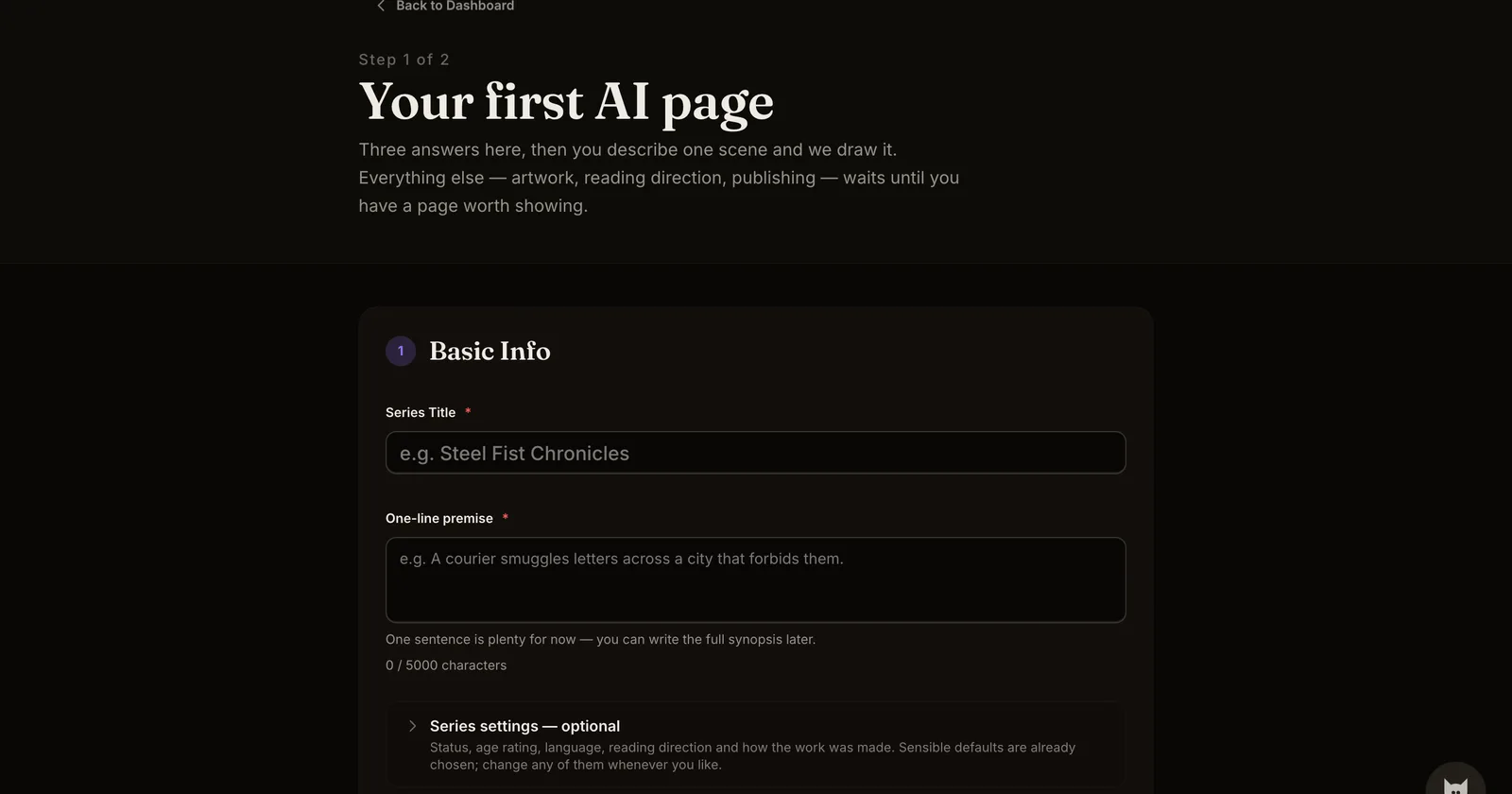
What shipped. The path from "I have a scene" to "I have a page I want to keep" is shorter, and the two places creators were losing work on it are closed.
- Two steps to a first page. Choose Create with AI and the series form asks for three things: a title, a one-line premise and a genre. Reading direction, age rating, cover art and publishing settings are still there, folded away as optional until you have a page worth showing. The chapter screen opens on one scene with a worked example you can drop straight into the box.
- The price, before you press anything. Above Generate the form states what this exact press costs, what your balance is, and how many pages that covers. Nothing is drawn or spent until you press it. Writing beats, editing them and uploading pages you drew yourself stay free.
- Keep it, or say what was off. When a page comes back, Add to Chapter keeps it and Not right? opens a short panel: six one-tap reasons and a free-text box, all optional. Skipping it changes nothing; filling it in is how we find out what to fix. From the same panel you can try again with a new prompt or discard the variants.
- Your scenes survive a top-up. Leaving the chapter form for Get more credits and coming back — after paying, after cancelling, or by reloading — restores every beat, the outline, your character choices and the tab you were on. A reference image you attached has to be picked again; the restore banner says so instead of pretending. Nothing generates until you press the button yourself.
- A confirmation you can trust. The page after checkout now reports the actual state of your purchase: confirming, added (with the real number of credits), or not gone through. It cannot be talked into showing a purchase that did not happen, and refreshing it never adds credits twice. From there, Continue creating takes you back to the chapter you left.
- Pick up where you left off. The creator dashboard puts an unfinished AI chapter first, with the cost of the next page beside it.
Why it matters. Most creators who arrive from a search for an AI comic tool never reach a page they would keep. Every step above removes a place where they stopped: setup they did not need, a price they could not see, a draft that vanished on the way to the credits page, or a success message that was not true.
How to use it. Choose Create with AI from Creator Studio or from the AI comic generator page. The walkthrough How to turn one scene into a comic page shows the whole path with real costs; How to keep one character the same across pages covers the next thing that usually goes wrong.