Frame your cover, banner and profile picture by hand
Drag and zoom to choose exactly what your series cover, banner, profile picture and profile cover show. Generated banners now come out at the banner's own shape.
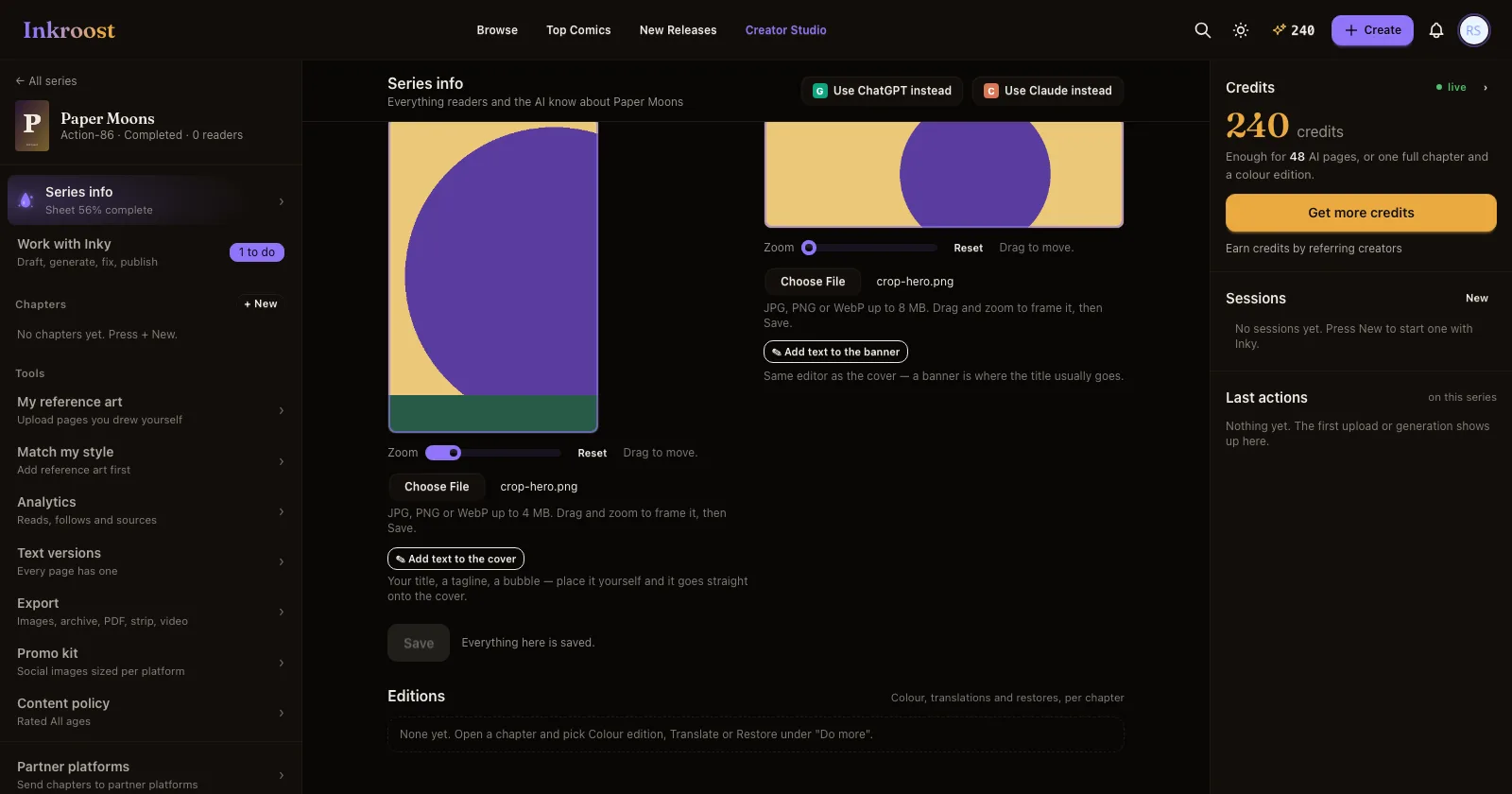
What shipped. Under Series info, the cover and the banner now sit in a frame at their real shape. Pick a picture and it appears in the frame straight away: drag it to move, use the slider (or the mouse wheel) to zoom, press Reset to start over, then Save. What the frame shows is exactly what readers get, on the series page, in every list and in link previews. The same frame is under Settings → Profile for your profile picture, shown round the way it appears next to your comments, and for your profile cover.
Why it matters. Until now a picture was stored as it came, and only a slider could nudge it up or down. A wide photo made an awkward cover and a tall one a poor banner, and there was no way to say which part of a photo should be inside the round profile picture.
How to use it. Nothing to set up. The picture you upload is kept whole, so you can open the same frame later and choose a different part of it without uploading again. Pictures you added before this keep working; frame one once and it gets the same treatment.
Also. When Inky draws a banner, it now asks for the widest picture the model can make and cuts it to the banner's shape around the middle, so the ends are all that is lost. You can re-frame it like any upload.