creation
Circle what's wrong and fix just that, plus a continuity check across your pages
Every new page is now checked against the pages before it for extra arms, wrong fingers, duplicated characters, changing backgrounds and story breaks. The best drawing is picked for you, and you can circle any area and say what to change.
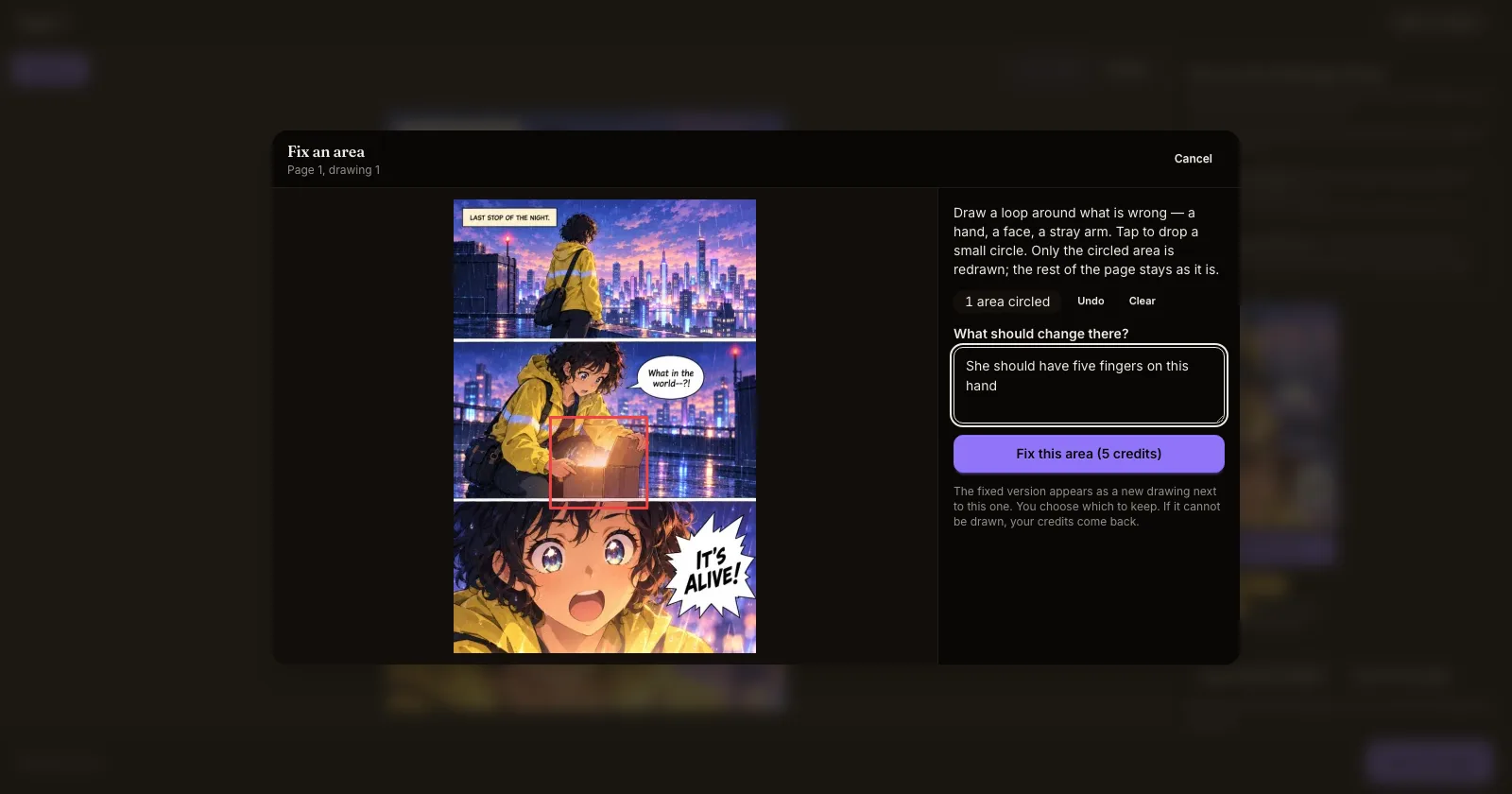
What shipped. Two tools for the moment a page is almost right.
- A continuity check on every page. When a page is drawn, it is compared with the pages before it: the last few as pictures and the whole story so far as text, together with your character, prop and location sheets. The check looks for extra or missing arms and legs, the wrong number of fingers, the same character drawn twice, backgrounds that change mid-scene, outfits or injuries that do not carry over, and pages that do not show what the scene asked for. Each drawing gets a Continuity score and a short list of what was found, right in the review screen.
- The best drawing, picked for you. When a page has more than one drawing, the one that best continues the story is marked Recommended. In a long run the next page is drawn from that one, so a mistake on page 12 does not carry into page 13. Keeping a drawing yourself always wins, and starts the next page straight away.
- Some fixes happen on their own, free. If even the best drawing has a clear, serious problem, such as an arm growing from the wrong place, Inkroost draws one fix for that page automatically, at no cost to you. There is at most one per page and a limited number per run and per day. The fix appears as another drawing for you to choose.
- Circle it and say what to change. Press Fix an area on any drawing in review, or choose Fix an area from a kept page's menu. Draw a loop around the problem with your mouse or finger, or tap to drop a circle, then type what should change, like she should have five fingers on this hand. Only the circled area is redrawn, and the rest of the page stays as it was. The result appears next to the original so you can pick one. It costs one page's credits, and they come back if nothing can be drawn.
- One tap from a problem to a fix. Every problem the check can point to has a Fix this link that opens the editor with the area already circled and the change already written.
Why it matters. A 60- or 100-page chapter used to mean hunting for a stray limb page by page, then regenerating a whole page and hoping the rest survived. Now problems are pointed out as the pages come in, and a bad hand is a bad hand, not a whole page to redraw.
How to use it. Open a chapter in Creator Studio and review your new pages as usual. The check runs on its own. Use Fix an area or Fix this when you want to change one part of a drawing.