Upload a whole chapter at once, and watch every page arrive
Drop up to 100 pages in one go. You see a small preview of each straight away, each file's progress while it uploads, and each page's state once it is in the chapter.
What shipped. Adding your own pages works the way uploads should. Drop your files on Upload pages and a small preview of each appears at once, in filename order, with a × to take one out before anything is sent. Three files upload at a time, each with its own progress, and a file that fails can be tried again on its own. Press the Add button under the previews and the pages are in the chapter within seconds, even a hundred of them.
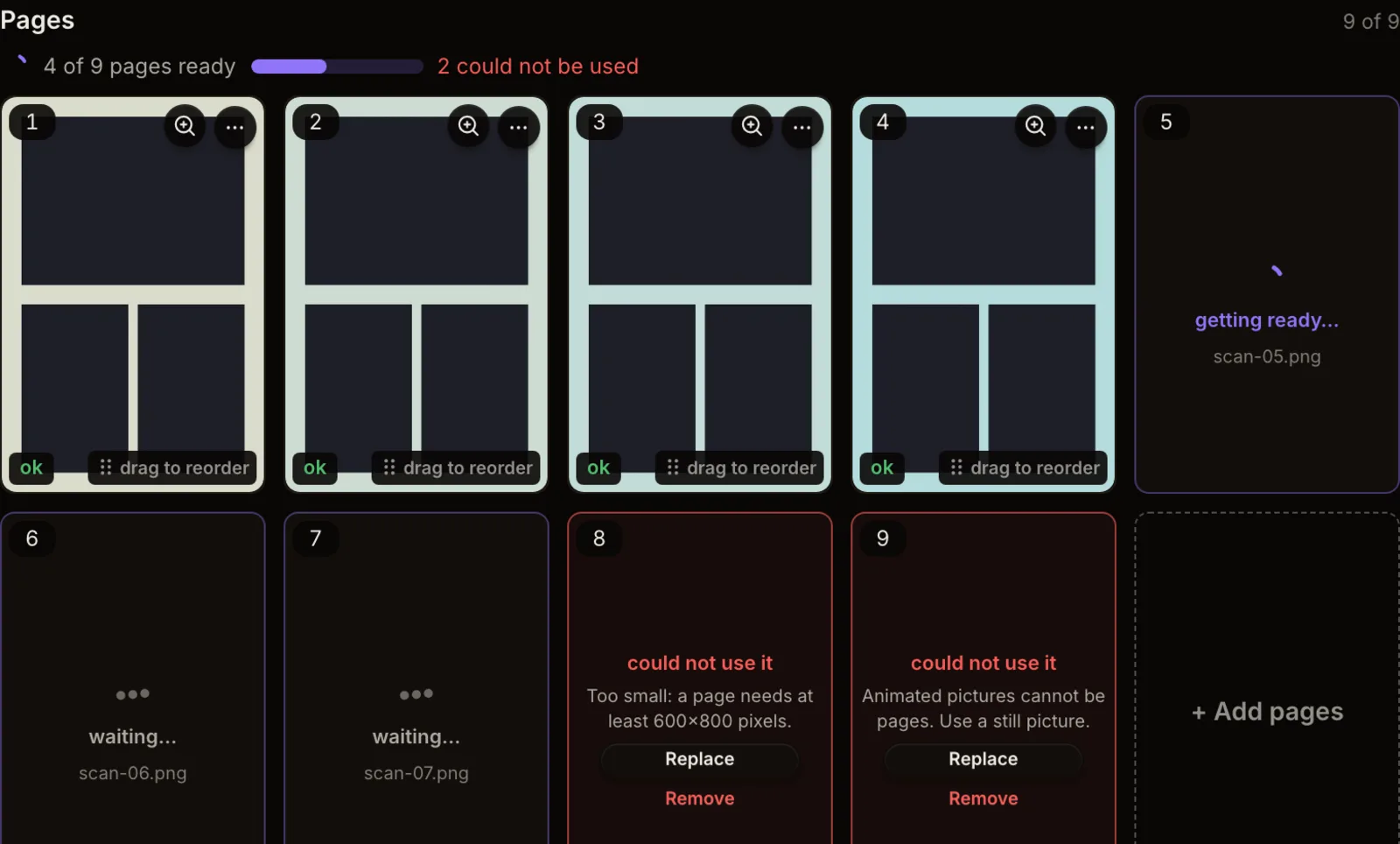
Why it matters. Until today, a big chapter was checked page by page while you waited, and past a certain size the page gave up with an error even though your pages kept arriving behind it. Now the waiting happens in the background, and you can see it: every new page in the grid says whether it is waiting, getting ready or done, with a line like "12 of 20 pages ready" above them.
How to use it. Open a chapter and go to Add pages, which now folds away once the chapter has pages; the + Add pages tile at the end of your pages opens it. A file that cannot be used as a page, for example one that is too small or animated, says why on its own tile, with Replace and Remove next to it. Publishing waits until every page is ready.