Reordering and editing pages on a phone
The chapter editor's page-move arrows now show on a phone, and each page's actions sit in a labelled menu that opens above the dock.
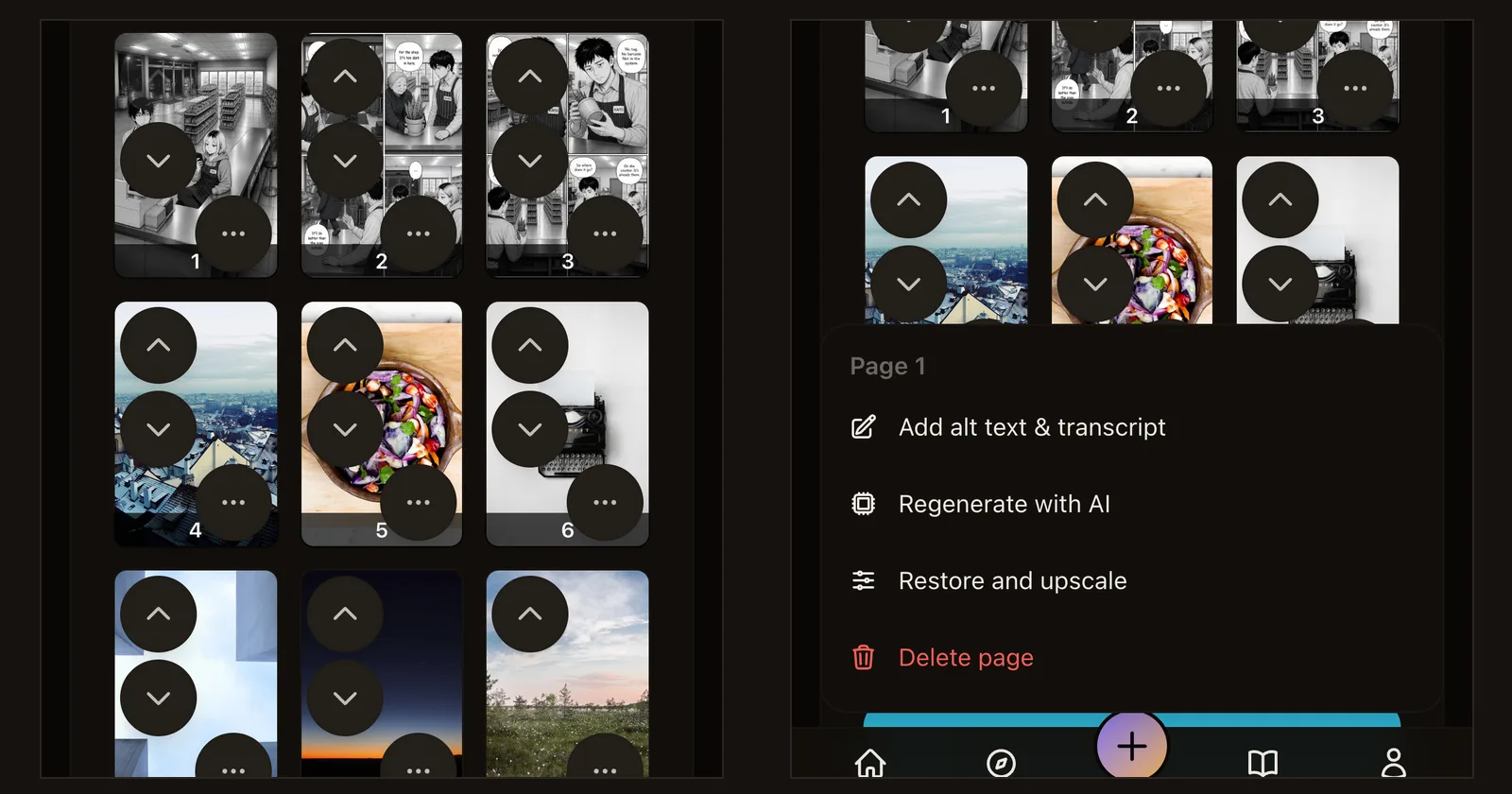
What shipped. A creator wrote in that they could not reorder pages from their phone: the arrows only appeared when a mouse hovered over a page, and a phone has no hover. In the chapter editor, every page on a draft chapter now carries an up and a down arrow the size of a thumb, all the time. The grid is three pages wide on a phone so the arrows have room.
The small round buttons that used to crowd each page on a phone are gone too. Each page now has one more button. Tap it and a menu opens above the bottom bar with the page number and every action spelled out: Add alt text & transcript, and while the chapter is still yours to change, Regenerate with AI, Restore and upscale, Revert to original and Delete page. Tap outside the menu to close it.
One more phone fix in the same editor: on a chapter that is already approved, the row under the settings used to squeeze the Approved badge, Unlock for revision and Save Settings together until the two overlapped. That row now wraps, with Save Settings on its own line, and both buttons are big enough to tap.
Why it matters. Ordering pages is the last step before sending a chapter for review, and a fair share of creators do it from a phone. Buttons that only show under a mouse, or that are too small to hit without hitting their neighbour, meant a trip to a laptop for a ten-second job.
How to use it. Open a draft chapter in the chapter editor on your phone and scroll to Existing Pages. Use the arrows to move a page one slot up or down, and the more button on any page for everything else. On a laptop nothing changes: the controls still appear when you hover over a page.