How to letter your comic pages
Add speech bubbles, captions and sound effects right on the page, in eleven comic fonts, and keep every bubble editable. Covers and banners can carry text too.
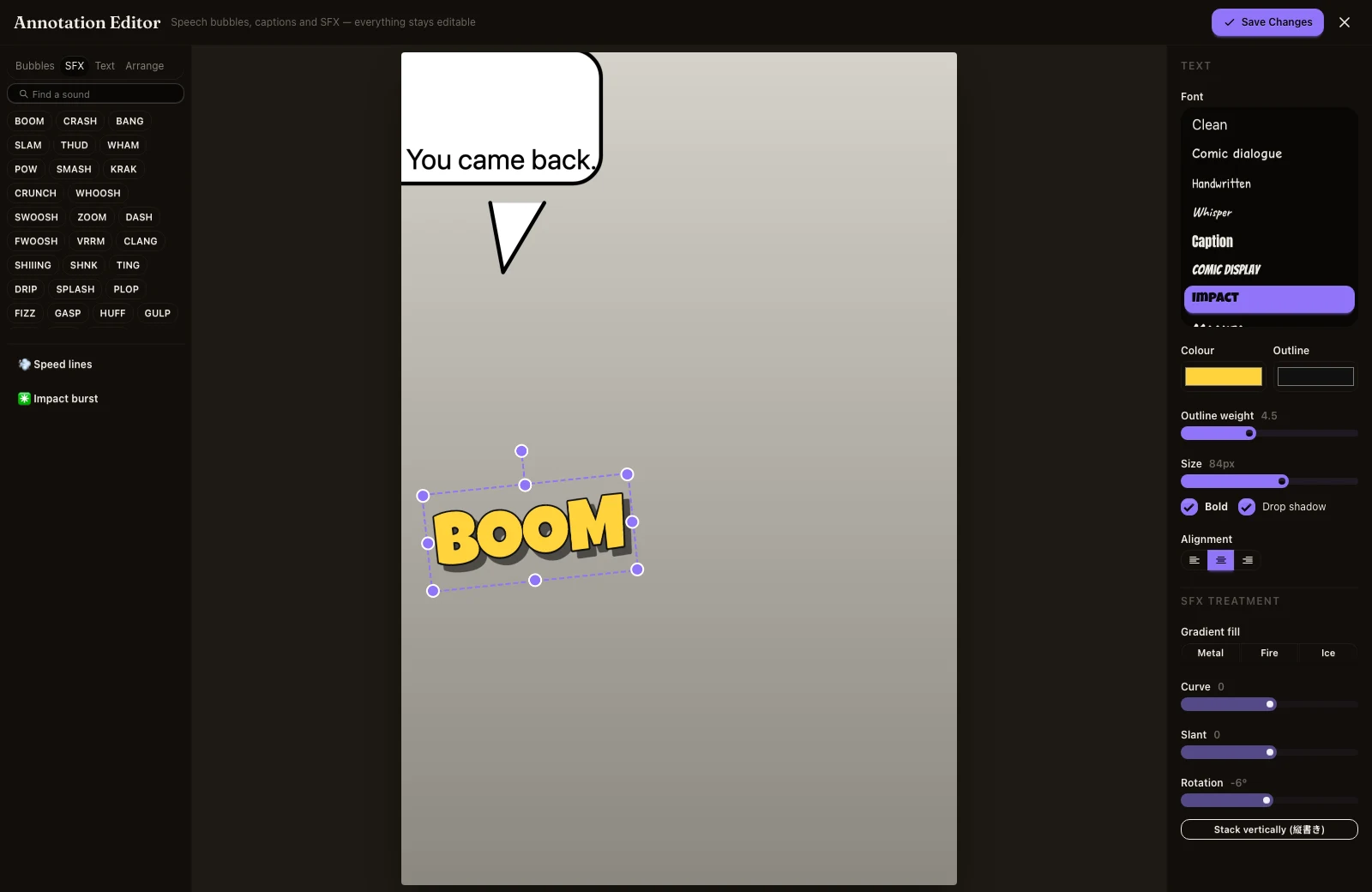
Lettering is the last step before a page is finished. You can do it in Inkroost, and what you letter stays editable.
1. Open the editor
In a chapter, open a page's menu and choose Letter this page. Once a page has lettering, the same menu says Edit the lettering.
2. Add bubbles and captions
Pick a bubble shape (speech, thought, whisper, burst, caption box and more), drop it on the page and type. Drag the tail to point at whoever is speaking. There are ten bubble shapes, and a tail can be placed on its own for off-panel speech.
3. Choose a font
Eleven fonts are included: comic dialogue, handwritten, whisper, caption, display, impact, marker, signage, horror, a Japanese face for manga, and a plain one. Each is drawn in its own style in the picker, and all are free for commercial use.
4. Add sound effects
BOOM, CRASH, ドドド and dozens more drop onto the page as ordinary text you can retype, with outline, shadow, fills, curve, slant and rotation.
5. Save
Save and close. Your bubbles sit on top of the original artwork, so a typo is a quick fix later, not a redraw.
Text on covers and banners
On a cover or banner, choose Add text to the cover to open the same editor. You can also ask for a title when drawing the cover, and the exact words you give are put on the artwork.
Need clean pages for translation?
If your pages have text drawn in, Split into panels under Do more with this chapter can clear it. Pick Remove the text, keep the bubbles to keep the balloons empty and ready for new lettering or a translation.