Colour and translated editions of your chapters
Turn a finished chapter into a colour edition or a translated edition, or clean up and enlarge old scans, without touching the original.
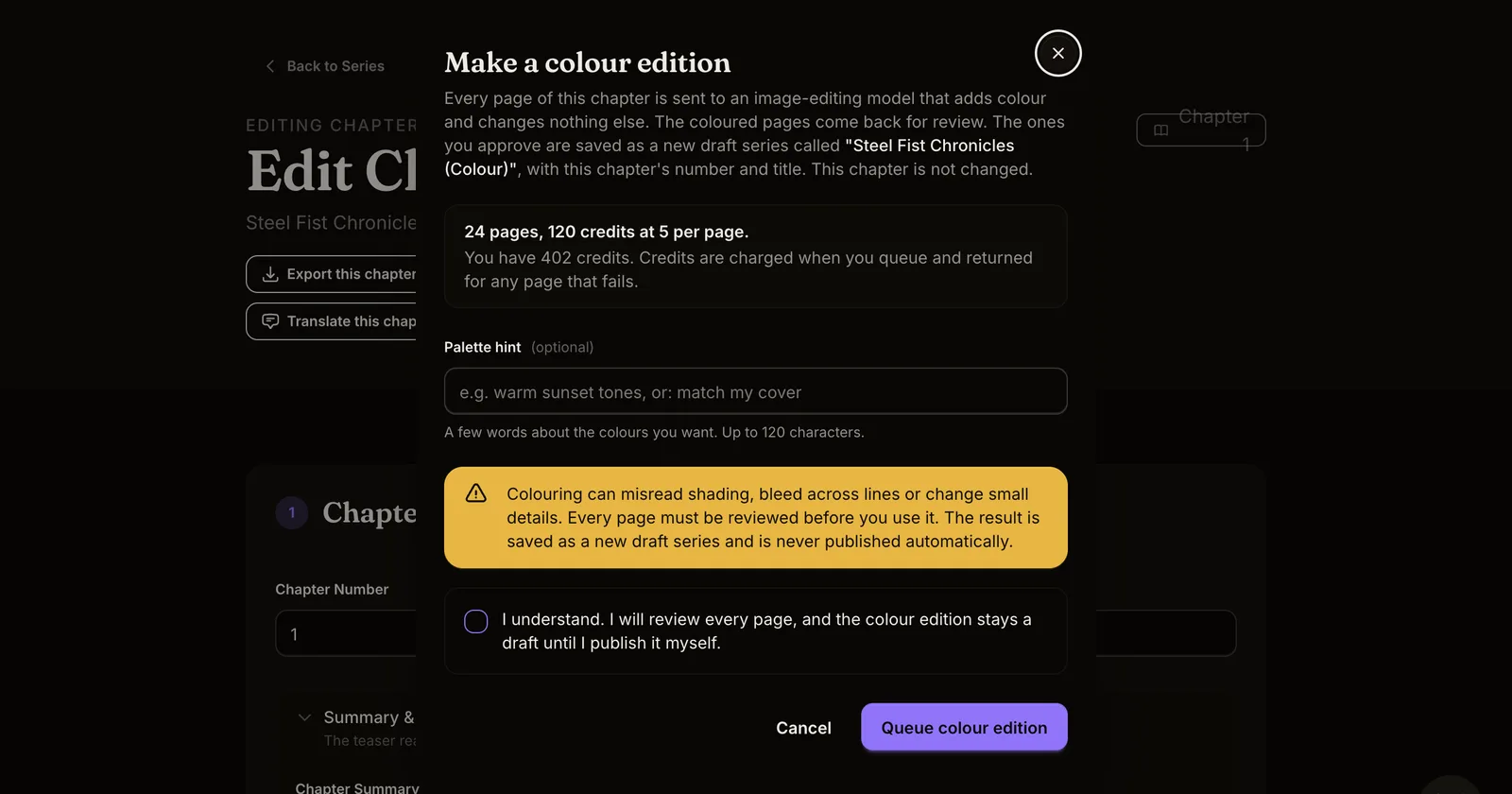
What shipped. Three new tools on the chapter editor, all built the same way: every page is sent to an image-editing model, the results come back for you to review, and nothing replaces your work until you say so.
- Make a colour edition. Black-and-white pages come back coloured, with the linework untouched. You can add a palette hint such as "warm sunset tones" or "match my cover". The approved pages are saved as a new draft series called Your Title (Colour).
- Translate this chapter. Only the text drawn on the page is rewritten, in the language you choose. Speech bubbles, captions and labels change; the art does not. The result becomes a new draft series with the language code in its title, for example Your Title (DE).
- Restore and upscale. For scanned or low-resolution pages: the AI cleans the scan and Inkroost enlarges it. You compare the result with the original side by side before it replaces the page, and the original stays recoverable.
Why it matters. A chapter you already finished is your most valuable asset. Reaching a colour-first audience or a second language used to mean redrawing or hiring out. Now it is a review pass.
How it fits together. An edition is linked to the series it came from. It inherits the characters, locations, props, style profile and reader settings of the original, so you maintain one set of sheets, not two. The public page of an edition says which series it is an edition of, and the original lists its editions.
How to use it.
- Open a chapter in the editor and choose Make a colour edition or Translate this chapter in the toolbar. The dialog tells you the page count and the credit cost before you queue anything, and credits are returned for any page that fails.
- Review every page when the job finishes. Approve the ones you want; regenerate the rest.
- The new draft series appears on your dashboard. Publish it whenever you are ready. It is never published automatically.
For restore and upscale, use the control on a single page or Restore and upscale every page for a whole chapter.