creation
Upload your pages and publish, without hunting for a button
Pages you upload are added to the chapter by themselves, and Publish chapter waits right where you uploaded them.
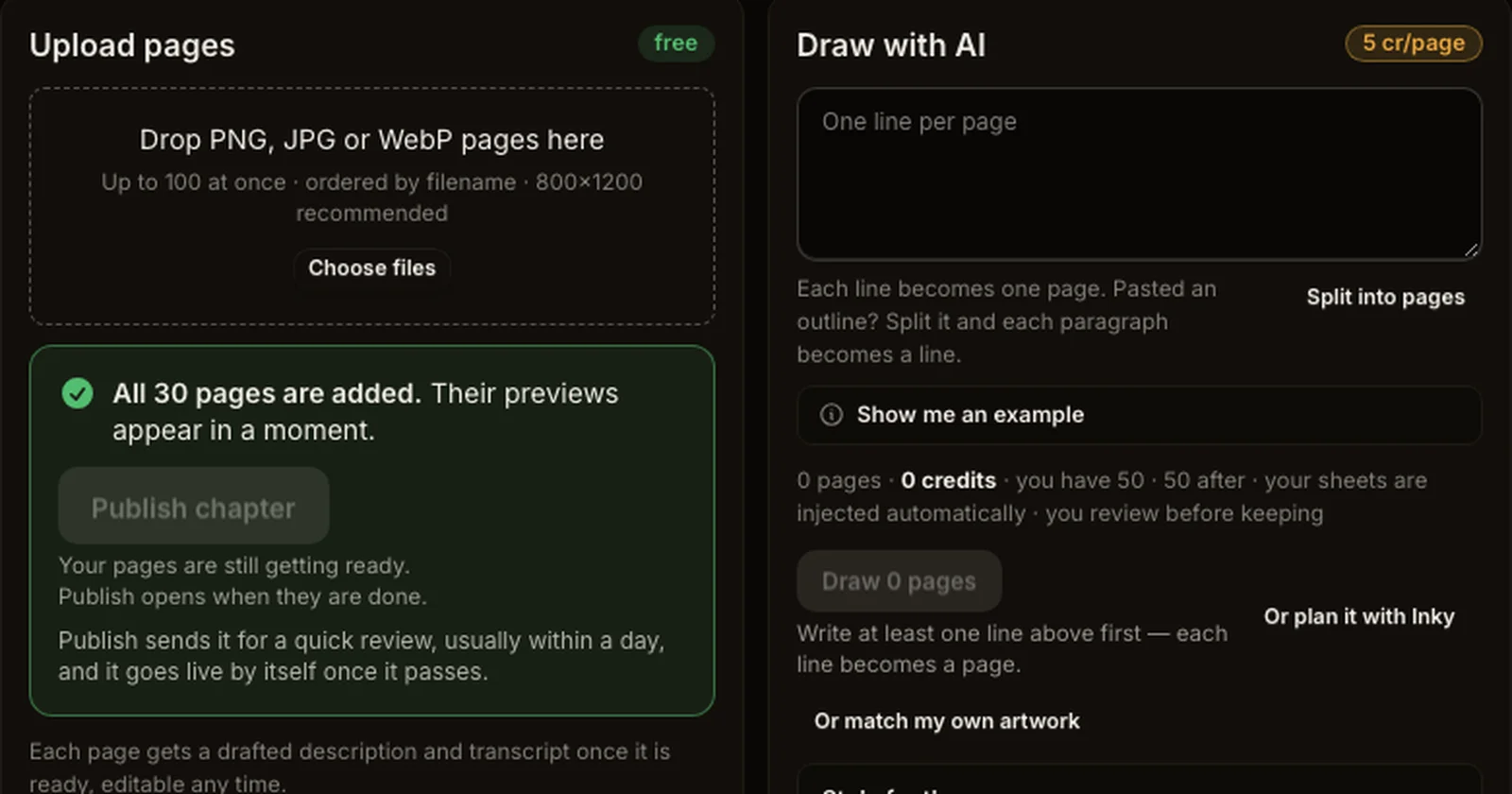
What shipped. Uploading your own pages is now one step. Choose or drop your files and they are added to the chapter as soon as they finish uploading. There's no second button to find.
- You can see it worked. A wide bar shows "Uploading 12 of 30…" and then "Adding 30 pages…". When it's done, the upload box says "All 30 pages are added". If a file doesn't make it, it says how many did and keeps that file there with Try again.
- Publish where you are. A Publish chapter button appears right under that message, so you don't have to scroll back up past your pages. If you scroll away, a small bar at the bottom of the screen keeps it in reach.
- No more empty boxes. New pages say "Getting page ready…" until their preview is ready, so it's clear your upload is there.
Why it matters. Creators were choosing their files, seeing them upload, and then never finding the step that turned them into pages. Now the files become pages by themselves and the next step is right in front of you.
How to use it. Open a chapter in the studio, choose your page files under Upload pages, and press Publish chapter once it says your pages are added.