Fix a scene in your episode without making it again
Spot a wrong hand or a floating lid in your animated episode? Pick the scene on the new timeline, say what should change, and only those seconds are redrawn. Your voices, music and subtitles stay as they are.
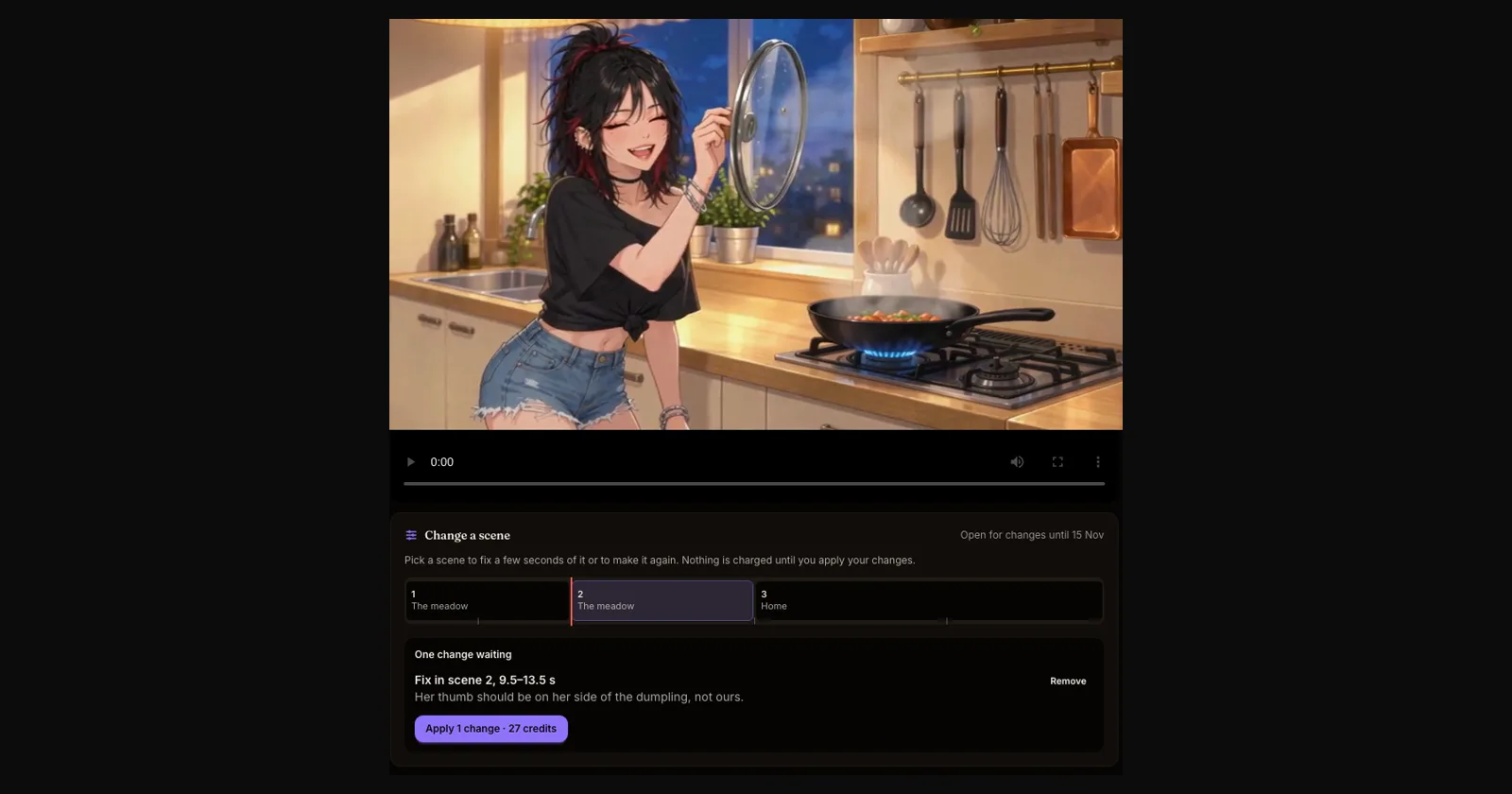
What changed. Under every finished episode there is now a Change a scene timeline. Each block is one scene of your episode, as long as it plays. Click one to jump there and choose what to do with it.
- Fix a part. Mark a stretch of 2 to 10 seconds, write what should change ("her thumb should be on her side of the dumpling", "only one plate on the counter") and add it. Those seconds are redrawn from your own footage; everything around them stays the same.
- Redo the whole scene. When a scene needs more than a touch-up, open its shot directions, the beats it was planned from, rewrite them and the scene is made again with your episode's characters and look.
- Several changes at once. Add as many fixes as you like, then press Apply once. You see the price in credits before anything starts, and changes that cannot be made cost nothing.
Your voices stay. The new picture is cut back in with the same voices, music, sound effects and subtitles, so the timing of every line holds.
Nothing is lost. Every round of changes becomes a new version of the episode. If you liked an earlier one better, press Go back to version 1 (or whichever you prefer) at any time, free.
Good to know. An episode can be changed for four weeks after it was made, and each round of changes starts those four weeks again.